

Top 5 MagicSchool AI Tools for Teachers (Classroom Usage with Examples)
A teacher’s work does not end when the school bell rings.
Before students enter the classroom, teachers may need to prepare lesson plans, develop assessment questions, create worksheets, design presentations, and adapt learning materials for students with different needs.
When these tasks accumulate, preparation can take time away from reviewing student work, planning meaningful activities, and responding to individual learning needs.
Artificial intelligence tools can help with some of this preparation. However, the value of an AI tool depends on how thoughtfully a teacher uses and reviews its output.
| MagicSchool AI is an education-focused platform that provides tools for lesson planning, assessment, content creation, and differentiation. |
Its official website lists tools including Lesson Plan Generator, Rubric Generator, Presentation Generator, Multiple Choice Quiz Maker, and Worksheet Generator.
In this guide, I will explain how teachers can approach these five tools, what information to prepare before using them, and how to review the resulting materials before introducing them to students.
What Is MagicSchool AI?
MagicSchool is an AI platform designed for educators and schools. Its teacher tools support activities such as lesson planning, content creation, assessment development, and differentiation.
The company describes its platform as educator-focused and provides separate resources for teacher and student use.
Teachers can explore the platform through its official website:
What Should Teachers Know Before Starting?
MagicSchool’s tools are intended to support teachers, not replace professional judgment.
Before generating any classroom material, prepare:
- The grade level or student age group.
- The subject and lesson topic.
- The intended learning objective.
- Relevant curriculum standards, where applicable.
- Students’ learning needs.
- The amount of time available.
- Any specific requirements for assessment or classroom activities.
The quality of an AI-generated draft depends partly on the information you provide. More detailed instructions do not guarantee accuracy, so the final material requires teacher review.
Tool 1: MagicSchool AI Lesson Plan Generator
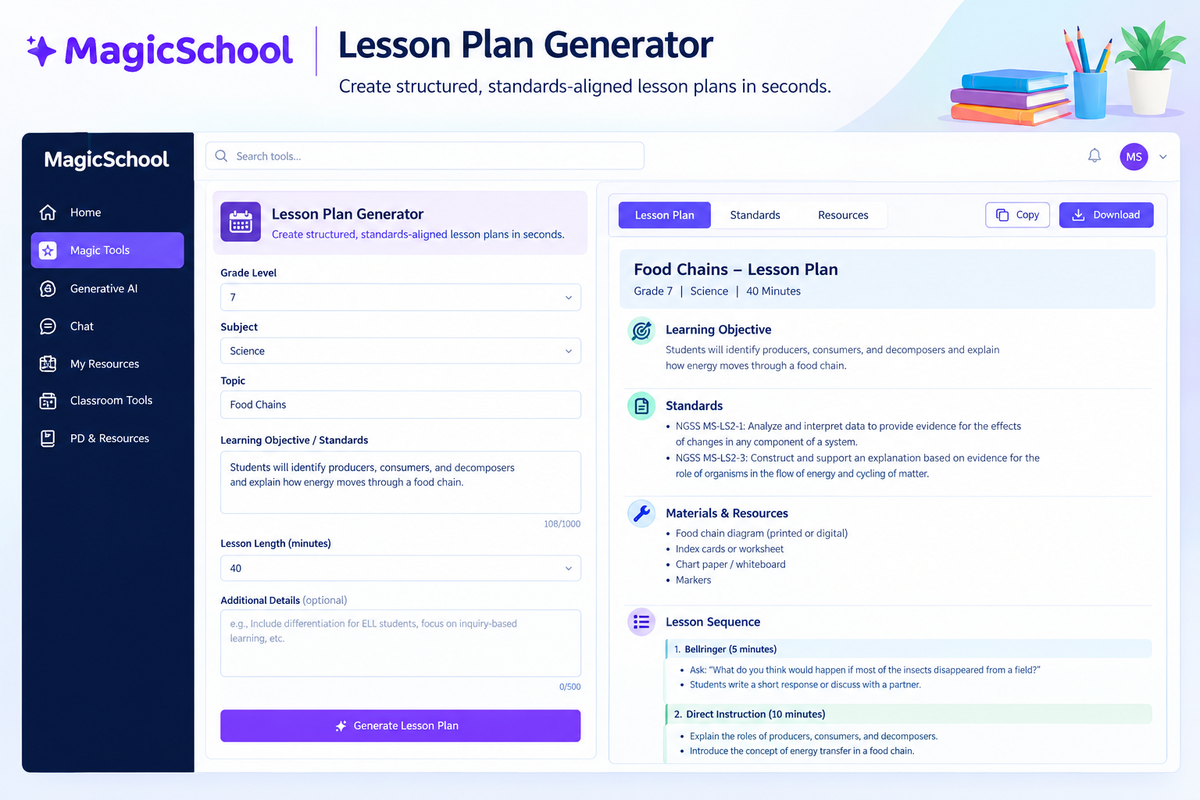
MagicSchool’s Lesson Plan Generator helps teachers create structured lesson plans from information such as the topic, grade level, standards, and learning goals.
Teachers can incorporate standards, learning objectives, time constraints, and differentiation needs into lesson planning.
Official Tool
MagicSchool Lesson Plan Generator
Step 1: Identify the lesson objective
Start with what students should learn, not merely the topic.
Less specific:
Teach photosynthesis.
More useful:
Students will explain how plants use sunlight, water, and carbon dioxide to produce glucose and release oxygen.
The second objective gives the tool a clearer instructional direction.
Step 2: Enter the grade level and subject
Specify the students for whom the lesson is intended.
For example:
- Grade: 7
- Subject: Science
- Topic: Photosynthesis
- Duration: 45 minutes
Step 3: Add standards or curriculum requirements
If your school follows a particular curriculum, include the relevant learning standard or objective.
Do not assume that a generated standards reference is accurate. Check it against the official curriculum document used by your school.
Step 4: Review the generated plan
Look for:
- Clear learning objectives
- Logical instructional sequence
- Appropriate activities
- Required resources
- Assessment opportunities
- Suitable difficulty level
- Realistic timing
Step 5: Adapt it to your classroom
A generated lesson plan is a starting point.
You may need to replace an activity that requires equipment unavailable at your school or simplify an explanation for students who need additional support.
Classroom Example
Topic: Food Chains
Grade: 7
Duration: 40 minutes
A teacher could use the following planning direction:
Create a Grade 7 science lesson on food chains. Students should identify producers, consumers, and decomposers and explain how energy moves through a food chain. Include an introductory question, a teacher explanation, a group activity, and an exit ticket. Use examples suitable for students with different levels of prior knowledge.
After reviewing the draft, the teacher might replace a generic example with a familiar local ecosystem.
That small adjustment makes the lesson more connected to the students’ learning context.
Teacher Review Checklist
- Is the objective measurable?
- Does the activity help students achieve the objective?
- Is the lesson duration realistic?
- Are the scientific facts accurate?
- Does the assessment measure the intended learning?
- Are the activities suitable for the actual classroom?
MagicSchool Lesson Plan Generator can create structured lessons and incorporate standards, grade levels, and differentiation requirements.
Tool 2: MagicSchool AI Rubric Generator
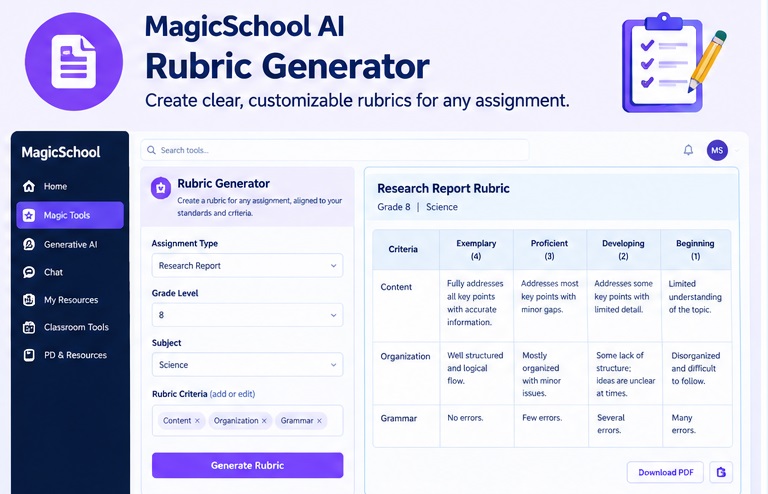
A rubric can help students understand what successful work looks like.
It can also help teachers organise assessment criteria and provide feedback more consistently.
MagicSchool’s official platform describes its AI Rubric Generator as a tool for creating clear, customisable rubrics for assignments.
Official Tool
The official tools directory provides access to the Rubric Generator. Interface availability and navigation may vary by account.
Step 1: Define the assignment
Start with a specific task.
For example:
Students will write a persuasive essay about the importance of protecting local water resources.
Step 2: Specify the grade level
The criteria should be appropriate for the students’ age and instructional level.
A Grade 5 writing rubric should not automatically use the same expectations as a Grade 10 academic essay rubric.
Step 3: Identify the assessment criteria
Possible criteria include:
- Clarity of argument
- Use of supporting evidence
- Organisation
- Language and grammar
- Conclusion
Select criteria that genuinely matter for the assignment.
Step 4: Review the performance descriptors
Check whether each performance level describes a meaningful difference in student work.
Avoid vague descriptions such as:
Excellent work.
A more useful descriptor explains what the student has demonstrated.
For example:
Presents a clear claim and supports it with relevant evidence.
The wording must match the actual assignment and grade level.
Step 5: Share and explain the rubric
Introduce the rubric before students begin their work.
Discuss one or two criteria and provide examples where possible.
Classroom Example
Assignment: Science Investigation Report
Grade: 8
Possible criteria:
| Criterion | What the teacher checks |
| Research question | Is the question clear and relevant? |
| Method | Are the steps explained accurately? |
| Evidence | Are observations or results presented clearly? |
| Explanation | Does the student connect evidence to the conclusion? |
| Communication | Is the report organised and understandable? |
This structure can support a more transparent discussion of expectations.
Important Assessment Caution
A rubric does not automatically eliminate subjective judgment.
Different teachers may interpret descriptors differently, and some forms of student work require professional judgment.
To improve consistency:
- Use specific descriptors.
- Review sample student work.
- Discuss criteria with colleagues.
- Explain expectations to students.
- Review the rubric after using it.
MagicSchool Rubric Generator as a tool for creating custom rubrics that help teachers focus on feedback and student growth.
Tool 3: MagicSchool AI Presentation Generator
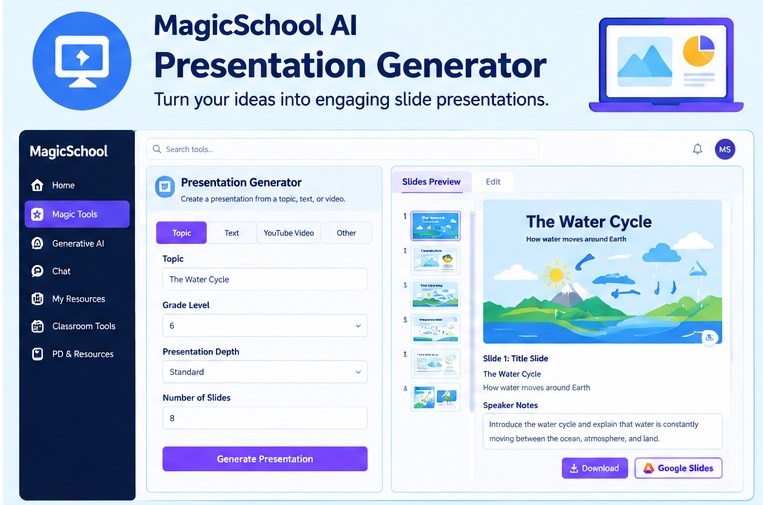
Creating classroom slides can involve more than writing text.
Teachers need to organize information, select appropriate examples, sequence explanations, and decide how students will interact with the material.
MagicSchool’s Presentation Generator is designed to create presentations from topics, text, videos, or existing classroom materials. Its official page describes options for adjusting content, length, depth, and grade level.
Official Tool
MagicSchool Presentation Generator
Step 1: Choose the learning objective
Start with the intended learning rather than asking the tool to produce a presentation about a broad subject.
Example:
Students will identify three causes of soil erosion and explain how vegetation can help reduce it.
Step 2: Provide the topic or source material
MagicSchool’s official presentation tool page states that teachers can start with a topic, pasted text, a YouTube video, or other classroom material.
Use material that you have reviewed and are authorised to use.
Step 3: Select the appropriate level
Specify the grade level and desired depth.
A presentation for younger students may need fewer words and more guided explanation. Older students may require more detailed evidence and subject-specific vocabulary.
Step 4: Review the slide structure
Check whether the presentation contains:
- A clear introduction
- A logical sequence
- Appropriate examples
- Accurate information
- Useful visual support
- Opportunities for student participation
Step 5: Adapt the presentation
Do not assume that a complete slide deck is ready for classroom use.
You may need to:
- Remove unnecessary text
- Add a local example
- Replace an unsuitable image
- Correct a factual error
- Add a question for discussion
- Adjust the pace
Classroom Example
Topic: Water Cycle
Grade: 6
A teacher might request:
Create a Grade 6 science presentation explaining evaporation, condensation, precipitation, and collection. Include simple definitions, examples, and questions that encourage students to explain each stage.
After reviewing the generated slides, the teacher could add a diagram of the water cycle and ask students to explain what happens when water vapour cools.
Do Not Confuse Presentation Creation with Teaching
A visually attractive presentation does not guarantee learning.
Students may still need:
- Teacher explanation
- Guided questioning
- Practice
- Discussion
- Feedback
- Assessment
Use slides as part of the lesson, not as a substitute for instructional interaction.
Official Evidence
MagicSchool Presentation Generator can create presentations from topics, text, or videos and allows teachers to adjust the content for different classroom needs.
Tool 4: MagicSchool AI Multiple Choice Quiz Maker
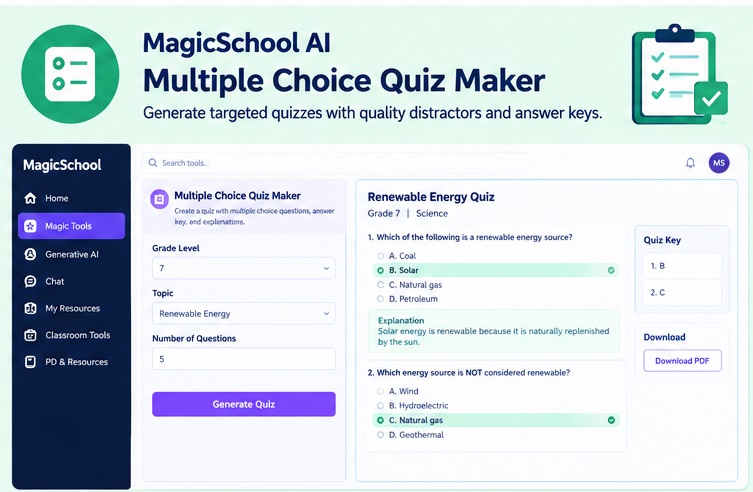
Multiple-choice questions can be useful for checking student understanding, retrieving previous learning, and identifying areas that need further instruction.
However, a quiz is only useful when its questions match the learning objective.
MagicSchool’s official website lists a Multiple-Choice Quiz Maker for creating quizzes and assessments tailored to topics, standards, and students.
Official Tool
MagicSchool Multiple Choice Quiz Maker
Step 1: Identify what you want to assess
Choose a specific learning target.
For example:
Students will distinguish between renewable and nonrenewable energy sources.
Step 2: Specify the grade level and topic
Include the intended level of difficulty.
Step 3: Define the number and type of questions
Decide whether students should:
- Recall information
- Identify an example
- Interpret data
- Apply a concept
- Compare alternatives
Do not rely only on recall questions if the learning objective requires reasoning.
Step 4: Review every question
Check:
- Whether the correct answer is actually correct
- Whether the wording is clear
- Whether there is one defensible best answer
- Whether the distractors are plausible
- Whether the question matches the lesson
- Whether the difficulty is appropriate
Step 5: Test the quiz yourself
Answer every question before giving it to students.
AI-generated questions may contain errors, ambiguous wording, or unsuitable answer options.
Classroom Example
Topic: Renewable Energy
Grade: 7
A teacher could request questions about:
- Solar energy
- Wind energy
- Hydroelectric power
- Fossil fuels
- Differences between renewable and nonrenewable resources
A useful question might ask students to identify which energy source is renewable and explain why.
The teacher should then verify that the answer options do not create unintended ambiguity.
A Common Quiz Mistake
Do not assume that a question is high quality simply because it has four answer options.
For example:
Which of the following is renewable energy?
This may be suitable for basic recall, but it does not necessarily assess whether students understand why a resource is renewable.
A stronger question might present a situation and ask students to apply the concept.
The appropriate level depends on the learning objective.
MagicSchool Multiple Choice Quiz Generator as a tool for creating assessments tailored to topics, standards, and students.
Tool 5: MagicSchool AI Worksheet Generator
Teachers often need multiple versions of the same learning activity.
Some students may require additional practice with foundational skills, while others may benefit from more challenging application tasks.
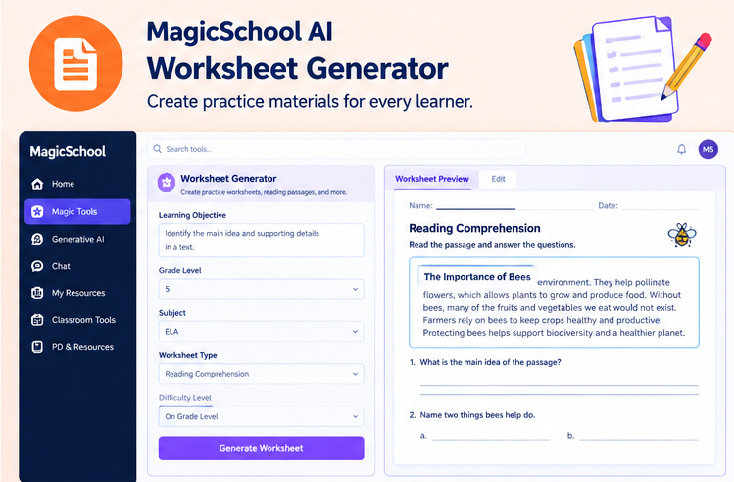
MagicSchool’s official Worksheet Generator is designed to help teachers create classroom worksheets and adapt content for different levels and instructional goals.
Official Tool
MagicSchool Worksheet Generator
Step 1: Define the learning objective
For example:
Students will identify the main idea and supporting details in an informational passage.
Step 2: Select the grade level and topic
Provide the intended student level and relevant subject information.
Step 3: Choose the activity format
MagicSchool’s official worksheet page identifies options such as practice worksheets, reading comprehension, exit tickets, graphic organisers, vocabulary builders, and quiz review.
The exact available options may depend on the current platform interface.
Step 4: Review the generated worksheet
Check:
- Reading level
- Question clarity
- Amount of work
- Accuracy
- Space for responses
- Alignment with the objective
- Suitability for your students
Step 5: Adapt the material
You might create:
- A version with vocabulary support
- A version with additional guided examples
- A version with more complex application questions
The objective should remain clear across versions.
Classroom Example
Topic: Main Idea and Supporting Details
Grade: 5
A teacher could prepare a short informational passage followed by:
- A question asking students to identify the main idea.
- Questions about supporting details.
- A vocabulary task.
- A short written response.
The teacher could then adapt the reading difficulty while preserving the central learning objective.
Differentiation Requires More Than Changing Reading Level
Changing the reading level can be useful, but it is not the only way to support learners.
Consider whether students need:
- Additional examples
- Sentence starters
- Vocabulary definitions
- A graphic organiser
- Fewer questions
- More time
- Extension activities
The appropriate support depends on the student’s learning needs and the task.
MagicSchool Worksheet Generator can produce editable worksheets and support adaptations for different levels and instructional goals.
The 80/20 Rule: AI Drafting and Professional Teacher Judgment
Lead Editor’s Rule
AI tools can help generate an initial draft, but teachers remain responsible for reviewing, adapting, and approving the material before classroom use.
I would avoid presenting the 80/20 split as a scientifically established rule. It is better used as an editorial principle.
The AI Contribution
Depending on the tool and available features, AI may help teachers:
- Start a lesson outline
- Suggest assessment questions
- Organise rubric criteria
- Draft worksheet activities
- Develop presentation content
- Adapt materials for different learning levels
The Teacher’s Contribution
Teachers should:
- Verify factual accuracy.
- Check curriculum alignment.
- Review the difficulty level.
- Correct inaccurate information.
- Remove unsuitable examples.
- Consider accessibility.
- Protect student privacy.
- Review the material for classroom relevance.
- Test assessment questions.
- Make the final instructional decision.
MagicSchool describes its platform as including safeguards and teacher oversight, while its official privacy information discusses data protection and the handling of information. Teachers should still follow their school’s technology and student-data policies.
Important Limitations Teachers Should Understand
AI-Generated Content Requires Verification
An AI tool can produce an incorrect fact, weak explanation, or unsuitable question.
Review the content before students use it.
Curriculum Alignment Must Be Checked
A generated lesson plan may mention a standard without meeting its full requirements.
Compare the material with the official curriculum.
Generated Differentiation May Not Fit Every Learner
A simpler text is not automatically sufficient support for every student.
Consider the specific needs of your learners.
Interface Features Can Change
Tool names, navigation, output options, and account permissions may change over time.
The official MagicSchool website is the appropriate place to check current tool information.
Privacy Matters
Avoid entering identifiable student information unless your school has approved the practice and the platform’s relevant policies and agreements have been reviewed.
MagicSchool publishes information about its privacy and security approach, including statements about student and teacher data.
Conclusion
MagicSchool AI offers teachers a collection of tools for developing lesson plans, rubrics, presentations, quizzes, and worksheets.
These tools can help with the initial stages of preparation, but their usefulness depends on the decisions teachers make before and after generating the material.
A good lesson is not defined by how quickly its resources were produced.
It is defined by whether students understand the learning goal, engage with meaningful tasks, receive useful feedback, and have opportunities to improve.
My recommendation as an educator is simple:
Use AI to help you begin the work, then use your professional knowledge to make the work suitable for your students.
Before your next lesson, choose one tool, prepare a clear objective, generate a draft, and review it carefully.
Then ask yourself:
“Does this resource genuinely help my students learn, or does it simply give me something to put on the desk?”
That question keeps technology connected to the purpose of teaching.
Frequently Asked Questions
What is MagicSchool AI used for?
MagicSchool AI provides educator-focused tools for tasks such as lesson planning, assessment, content creation, and differentiation.
Can MagicSchool AI create lesson plans?
Yes. MagicSchool’s official Lesson Plan Generator is designed to help teachers create structured lesson plans based on instructional information such as grade level, subject, standards, and learning goals.
Can teachers create presentations with MagicSchool AI?
Yes. The official Presentation Generator supports creating presentations from topics, text, videos, and other classroom materials.
Can MagicSchool AI create worksheets for different student levels?
MagicSchool’s Worksheet Generator provides options for creating and adapting worksheets for different instructional goals and levels. Teachers should review the suitability of each version.
Should teachers use AI-generated materials without reviewing them?
No. Teachers should review AI-generated content for accuracy, curriculum alignment, suitability, and classroom relevance before using it with students.
Where can teachers find official information about MagicSchool tools?
Teachers can visit the official MagicSchool website and its teacher tools directory.